Add and set up barriers
Overview
Barriers are used to block access to dungeons and worlds, which have not yet been unlocked by the player.
Once the player unlocks the area, they are removed and access is granted.
How to add a barrier
To add a new barrier to a world, do the following:
Open the scene, in which the barrier should be
Create a new
game objectas a child of theBarriersgame object on the hierarchy
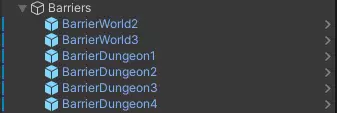
Add the
Barrierscript, twoBox Collider 2Dcomponents and aSprite Renderercomponent to the created game object
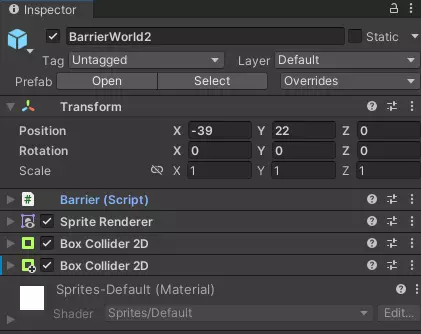
Place the object where the barrier should be, on the pathway towards the area it should block (via the
xandycoordinates)Adjust the trigger area of one
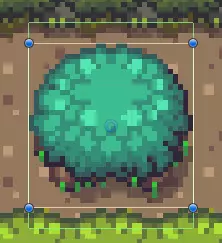
Box Collider 2Dcomponent using theEdit colliderbutton to specifies the area in which the player gets information about the barrier
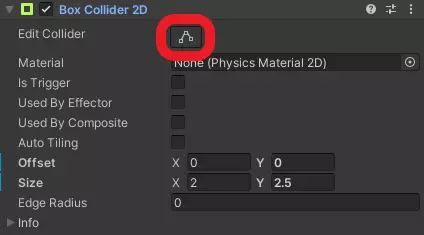
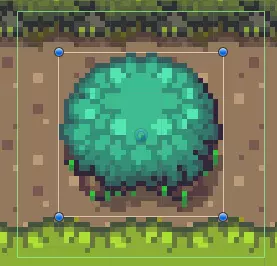
Adjust the collider area of the second
Box Collider 2Dcomponent using theEdit colliderbutton to sets the collider of the barrier
Set the
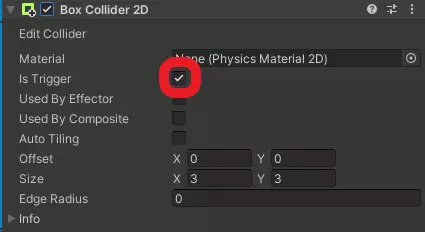
Is Triggerflag at the firstBox Collider 2Dcomponent (the one for the trigger area)
How to set up a barrier
Provide the required data for the barrier at the Barrier component
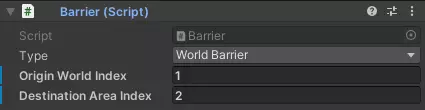
Type: SelectWorld Barrierto block access to another world orDungeon Barrierto block access to a dungeon of the worldOrigin World Index: The index of the world the barrier is inDestination Area Index: The index of the world or dungeon the barrier is blocking access to (world or dungeon is specified in theTypeattribute)
You also need to set up the Sprite Renderer component.
Select a sprite as the visible appearance of barrier as the
Spriteattribute.

Select in the
Sorting Layerdrop-down menuBackGroundThe
Order In Layerattribute has to be4
Prefab
You can also speed up that process by using the provided prefab, located at Assets/Prefabs/Barriers.
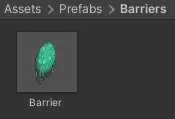
Simply drag an drop the Barrier object into the scene hierarchy as a child of the Barriers game object.
You can then skip steps 2, 3 and 7 as well as steps 2 and 3 of the Sprite Renderer component.