Scene Transitions
Overview
Scene Transitions are used to enter and exit dungeons. If the player enters the specified area, the transitions gets triggered and closes all open area scenes and loads the provided one.
How to create a scene transition
To add a new scene transition, do the following:
Open the scene, in which the scene transition should be
Create a new
game objectas a child of theScene Transitionsgame object on the hierarchy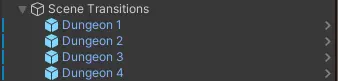
Add the
Load Sub Scenescript and aBox Collider 2Dcomponent to the created game object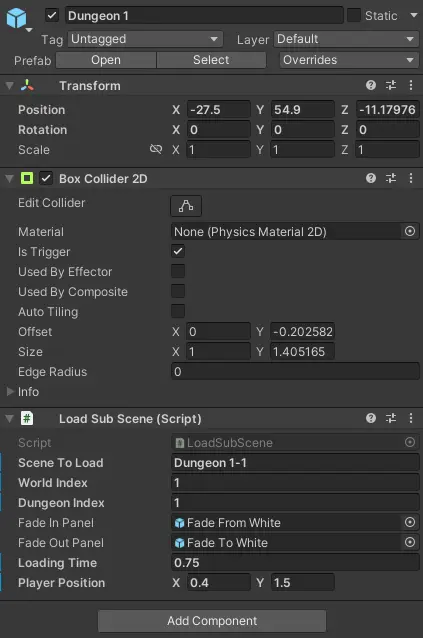
Place the object at the dungeon entry or exit point (via the
xandycoordinates)Adjust the trigger area of the
Box Collider 2Dcomponent using theEdit colliderbutton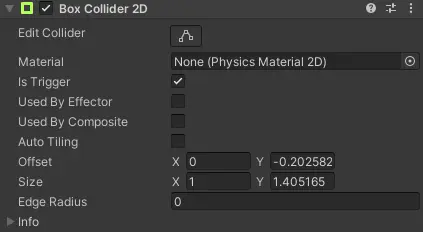
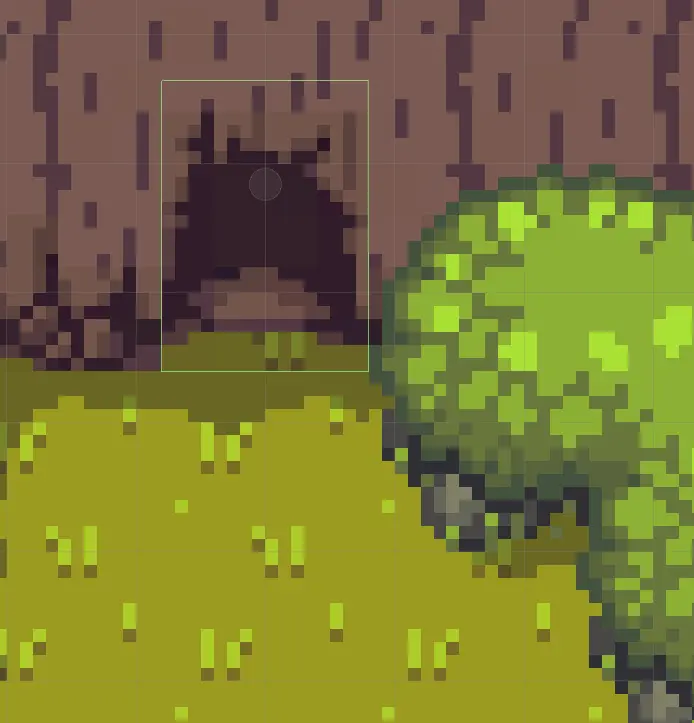
Set the
Is Triggerflag at theBox Collider 2Dcomponent
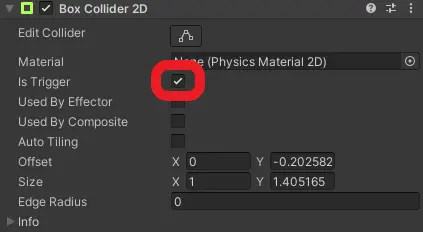
How to set up a scene transition
Provide the required data for the scene transition at the Load Sub Scene component
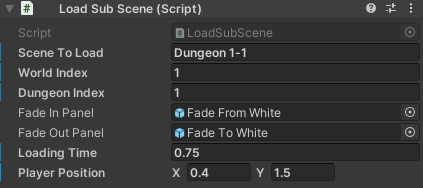
Scene To Load: The name of the scene, which should be loaded (normallyDungeon x-yorWorld x)World Index: The index of the world or the world the dungeon is inDungeon Index: The index of the dungeon in its world,0if a world should be loadedFade In Panel: A fade in animation, you can use the default one (Fade From Whitelocated atAssets/Prefabs/Scene Transition)Fade Out Panel: A fade out animation, you can use the default one (Fade To Whitelocated atAssets/Prefabs/Scene Transition)Loading Time: The amount of time the loading animation lasts, measured in secondsPlayer Position: Thexandycoordinates the player should spawn at in the loaded scene
Prefab
You can also speed up that process by using the provided prefab, located at Assets/Prefabs/Scene Transition.
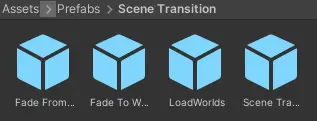
Simply drag an drop the Scene Transition object into the scene hierarchy as a child of the Scene Transitions game object.
You can then skip steps 2 and 3.