Add keybindings
Overview
Each player has their preferences regarding keyboard shortcuts.
Therefore, we support persistent, player specific keybindings across all courses.
That means that a player has to configure his bindings only once and can then use them in all his courses.
How to add a keybinding
If you want to add another action, you have to add it to the list of existing ones, in order to use it and for players to be able to bind it to their prefered key.
Overworld
You have to do the following in the overworld:
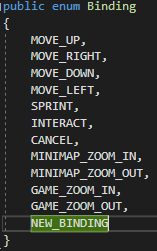
You need to add the new action to the script
Bindinglocated atAssets/Scripts/Keybinding.
You need to assign a default key in the function
ResetKeybindingsin the scriptGameManagerlocated atAssets/Scripts/GameManager. Simply create aKeybindingobject with your binding and your chosen key as aKeyCodeobject and call the functionChangeKeybindwith thatKeybindingobject. For reference, take a look at the other keybindings.
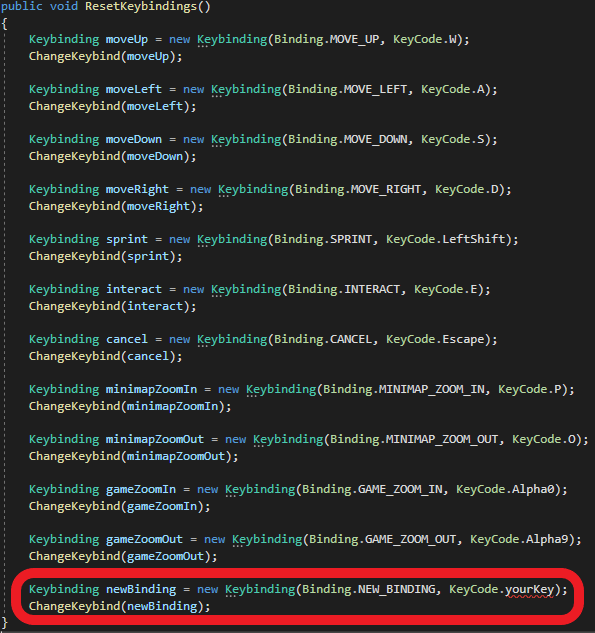
You need to assign an unused key, so you cannot chose a key already binded to another action!
Overworld Backend
You have to do the following in the overworld backend:
You need to add the new action to the enum
Bindinglocated atsrc/main/java/de/unistuttgart/overworldbackend/data/enums/.
It has to be the same action as in the overworld!
How to use the binded key
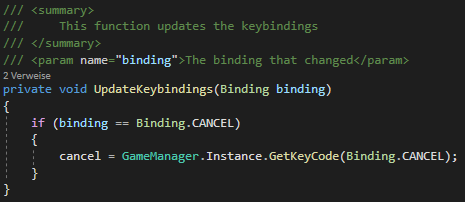
To use the new binding in a script, add a KeyCode object as an attribute and assign it in the Start function by calling the GetKeyCode function of the GameManager singleton instance and provide your action.
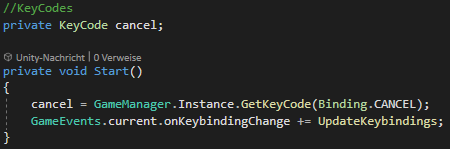
You also need to subscribe to the onKeybindingChange game event and add a key changing function to your script.