Overworld
The overworld is the core of the Gamify-IT platform. It is the main interface for students to interact with the platform.
Overview
The overworld consists of multiple worlds and dungeons.
Throughout these areas, students can discover course contents like playable minigames and dialogues with NPCs.
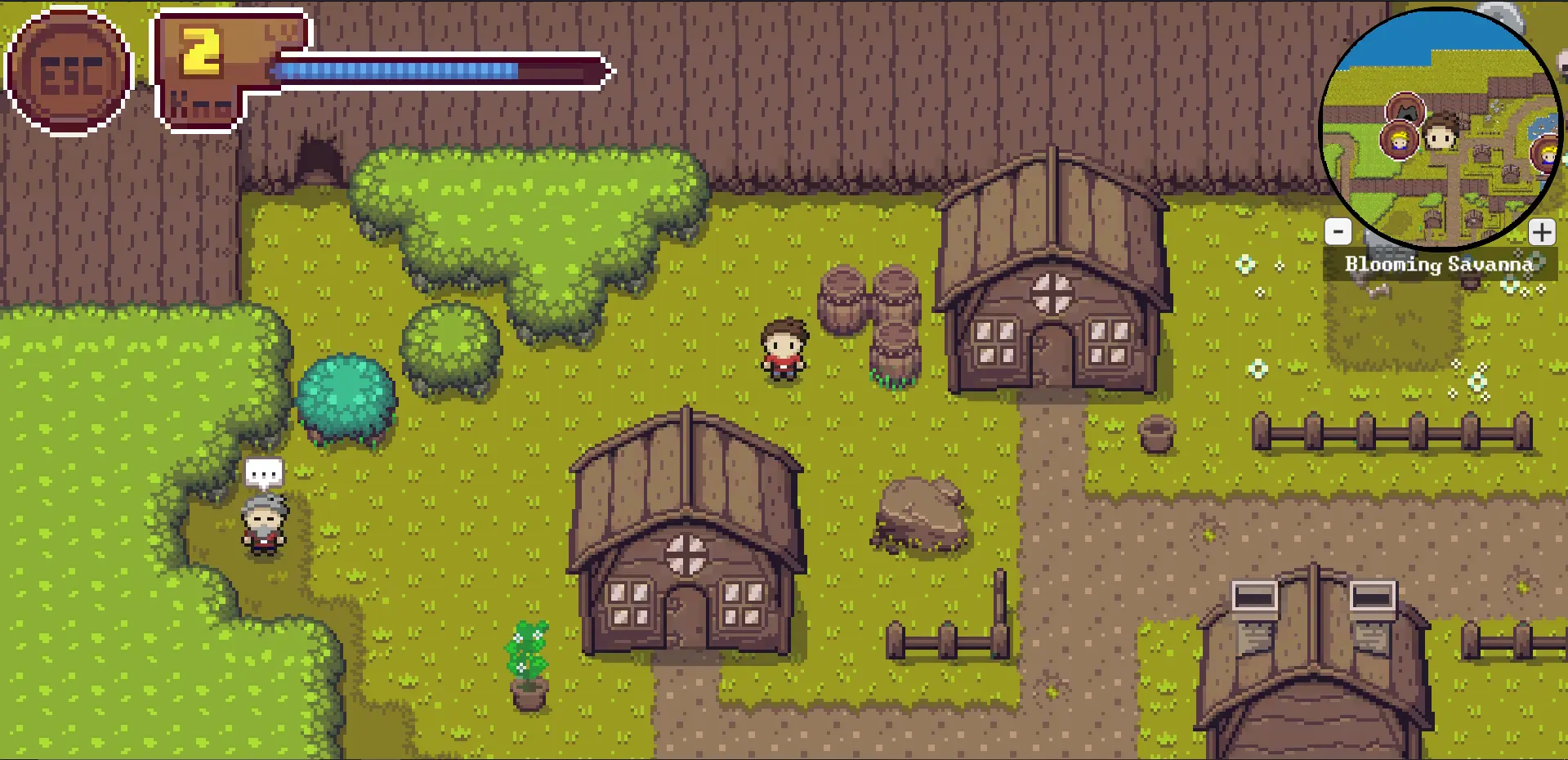
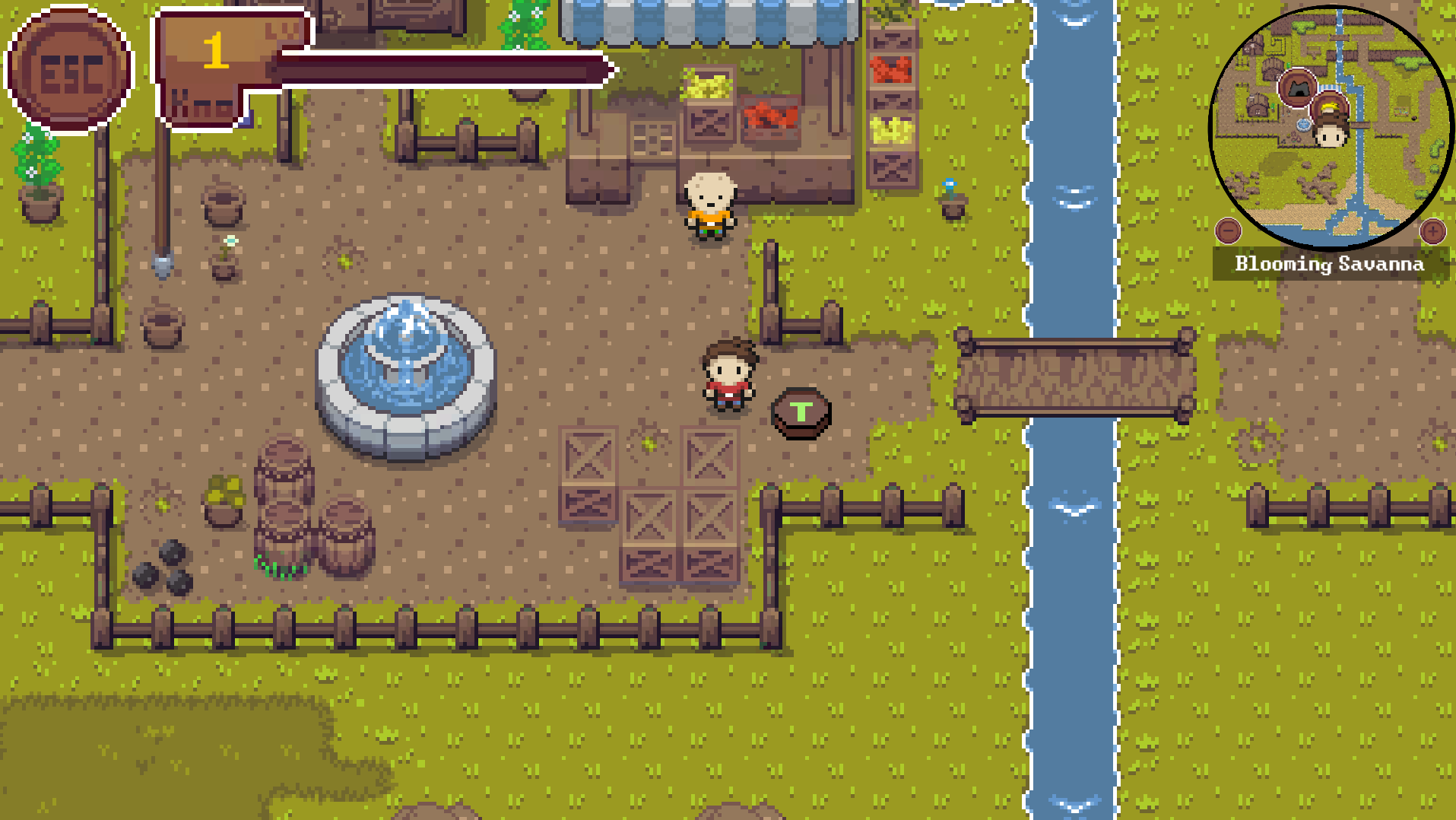
The player (the character in the middle of the picture) can walk around and interact with various objects such as the NPC on the left or with books to learn something.
The HUD helps navigating with the minimap and keeping track of the progress with the progress bar.
Gameplay
NPCs
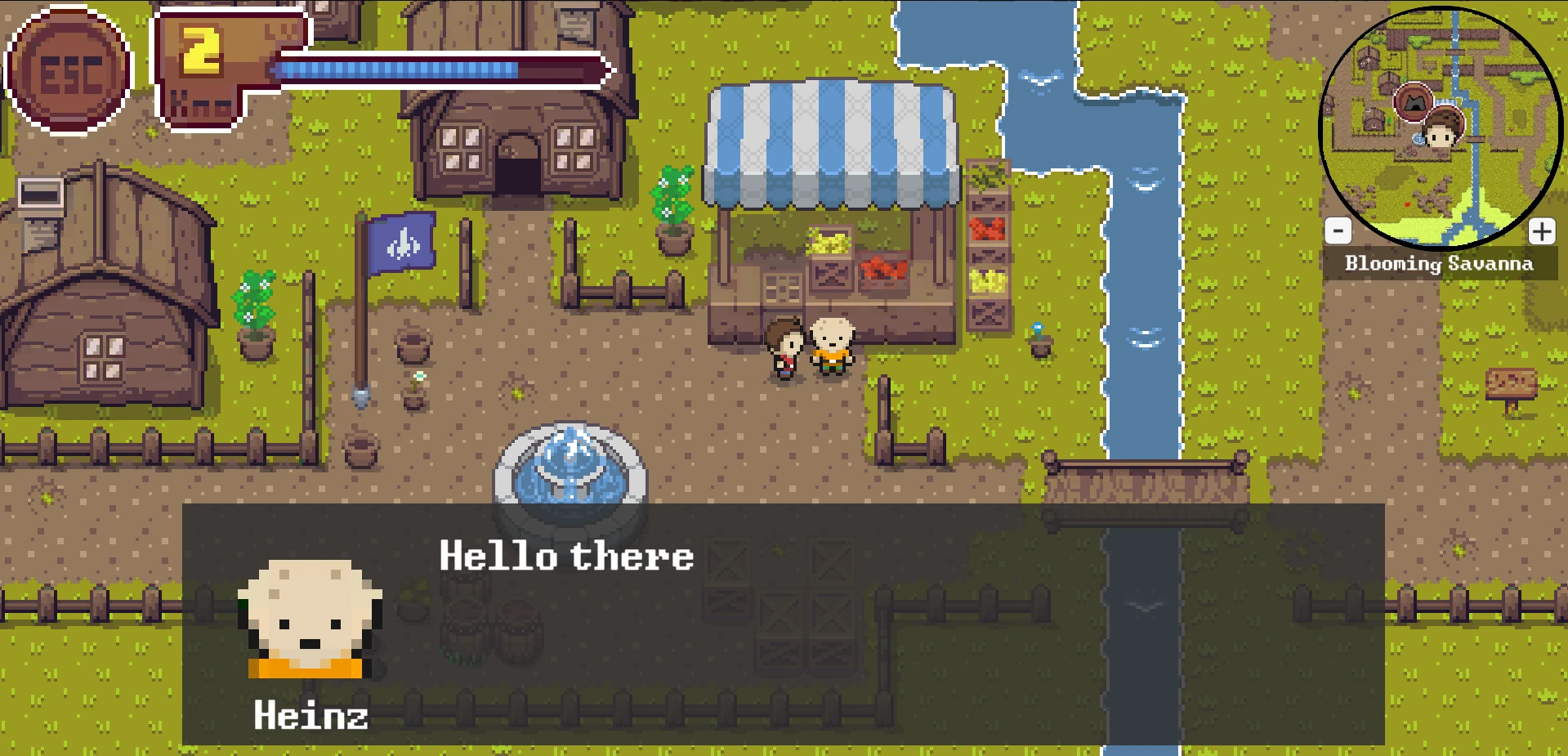
The player can talk to other characters in the world to obtain information.
The lecturer can specify what each NPC has to say.
This can be used to give tips or to summarize important topics for the player.
Books
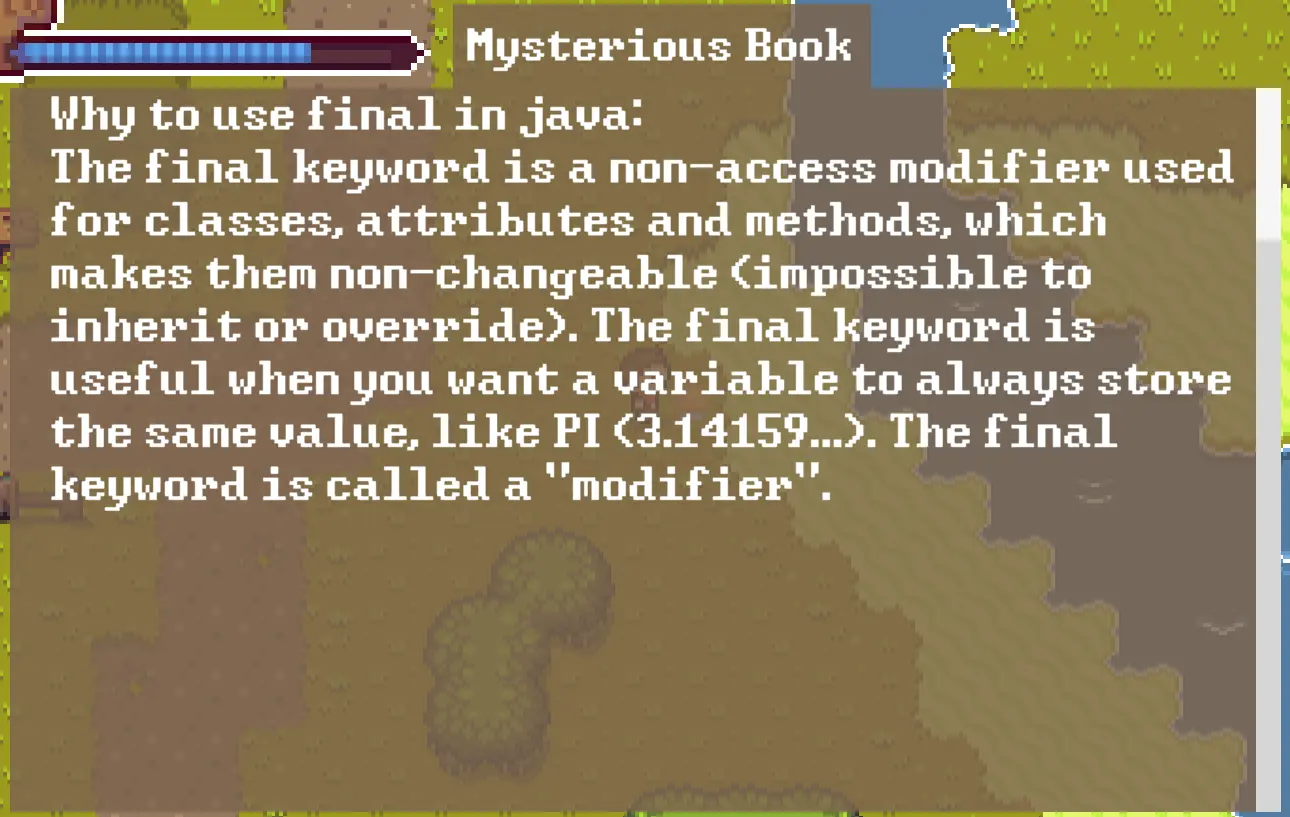
For large amounts of information, you can use books.
They are similar to NPCs:
They can also be configured by the lecturer and are meant to provide assistance.
Unlike NPCs, however, they show all content combined on one big page instead of splitting it up into sentences.
Hence, there are different ways to display information and help the player.
Minigames
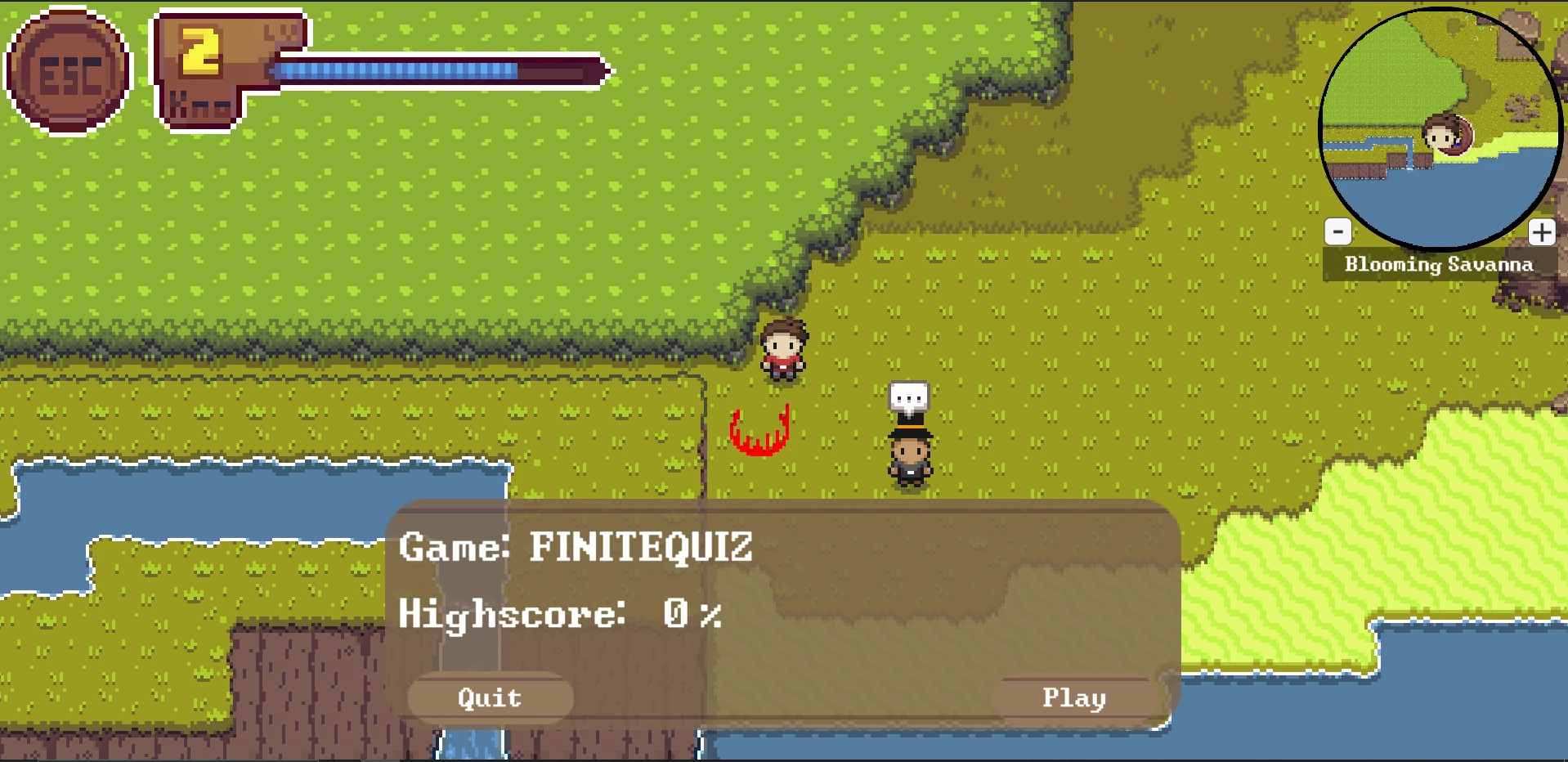
The main purpose of the overworld is to allow the player to test and increase his knowledge and understanding by playing minigames. Minigames can be started at minigame spots, displayed as the red circle in the picture. The lecturer can set up the questions and possible answers in the lecturer interface. Once the player enters the area of the minigame spot an information panel is opened. It displays the type of the game as well as the best result achieved by the player. The color of the minigame spot shows how good the player performed at the specific minigame. If the spot is red as shown in the picture, the player has not yet gotten enough points to complete the minigame. Once he finished a playthrough with the specified amount of points, the minigame spot turns blue which shows that he has finished it. The minigame can still be played and better results can be achieved, but the player doesn’t have to in order to progress to the next area.
Teleporters
As player paths through the world can get long and repetitive, we added teleporters to make life easier. Teleporters are spread over worlds and their dungeons. In the beginning of the game, all teleporters are locked. To unlock one, the player needs to walk towards it. Unlocked teleporters are indicated by a green shining T as shown in the picture, locked teleporters are indicated by a brown T. When a teleporter is unlocked it becomes a destination for all other teleporters that are unlocked. By interacting with it, the player can choose between available target destinations which are sorted by worlds.
Progress
There are multiple worlds with optional dungeons each. The lecturer can configure each of them in the lecturer interface. Once some playable content is added, the world or dungeon becomes playable, but is locked at first. If a player has achieved enough points in all minigames of an area, he completed it. He can then progress to the next one, which is either the next dungeon of the world or the next world, if no further dungeon exists or is not configured by the lecturer. To help the player navigate and keep track of his progress, the HUD comes into play. The minimap in the top right corner helps to get around and highlights the positions of important objects like NPCs (displayed with the character head symbol) or dungeon entrance points (displayed with a cave symbol). The progress bar shows the furthest area the player can play, displayed as the yellow number, and the ratio of completed minigames as the blue bar. With each completed minigames, the bar fills up until all are done and the next area is unlocked.
Controls
The player has a lot of options to interact with the game:
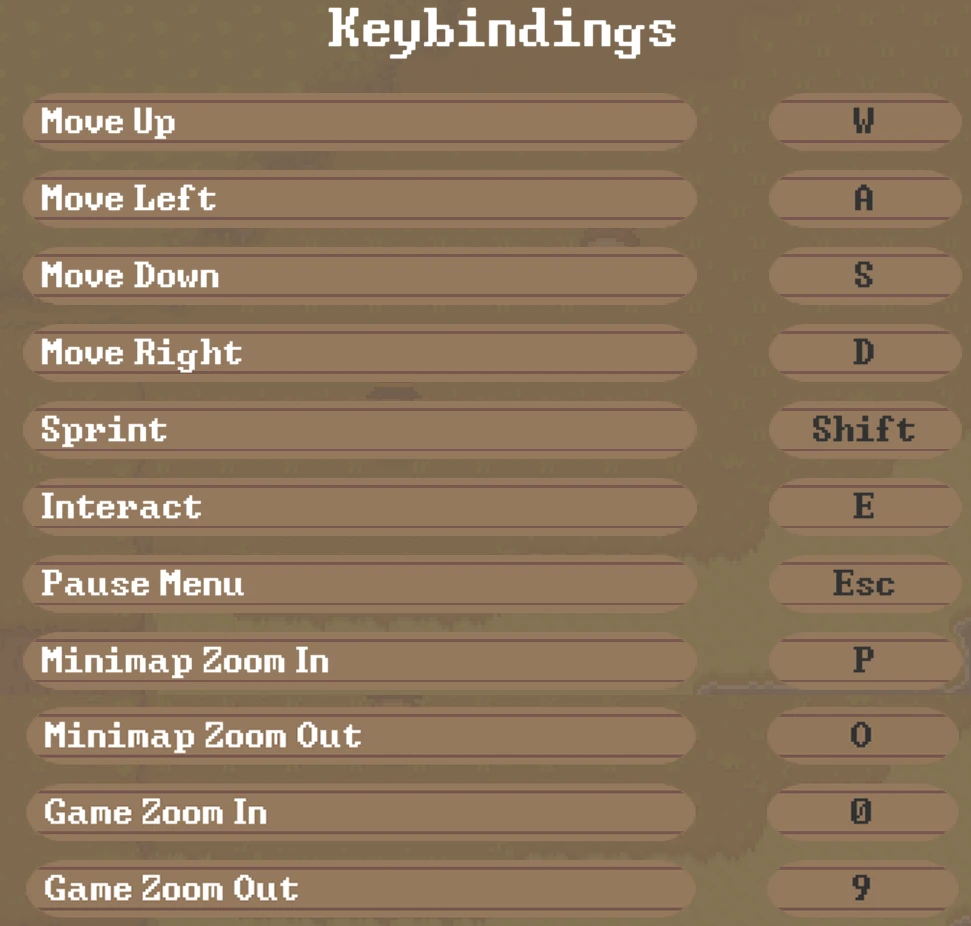
They can move around, they can adjust their (movement) speed, can interact with objects and characters, can open menus, and can zoom the game or minimap.
The respective keys for each of those actions are listed below and can also be found in-game in the pause menu (press the ESC button and navigate to the keybindings tab).
Developer
If you are a developer wanting to change or add something in the overworld, please refer to the developer README